Facility Alarm Tool - Selecting an Image
The following procedure explains how to select an image to display as part of a CygNet Facility Alarm Tool. When you associate a CygNet Facility Alarm Tool with an image, the image displays as the CygNet Facility Alarm Tool.
Note: Only .jpg, .bmp, .ico, and .dib file types are supported by this tool.
To Select an Image
- Using CygNet Studio in Edit mode, locate the correct tool palette, click the desired tool icon, then click on the TheView. This places the tool on TheView.
- Right-click the newly added tool to open its Property Sheet.
- On the Normal page, locate the Bitmap property and click its Browse button. The following dialog box appears:
|
Bitmap Dialog |
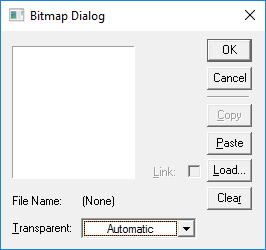
- On the Bitmap Dialog dialog box that opens, click Load.
- Select the file system where the desired image is stored and click OK. You have two options depending on the file system specified:
- Standard File System: Use the Windows Explorer to locate and select the desired image.
- Blob File System: Specify a Blob Service, select a Folder, then select the File Name and click OK. Folders and images in the Blob must be preexisting. For information about adding images to or retrieving images from the BSS, see Opening Files from or Saving Files to the BSS.
- Browse to the location of your desired image and select it. Only .jpg, .bmp, .ico, and .dib file types are supported by this tool. A dialog box similar to the following appears:
|
Image Preview |
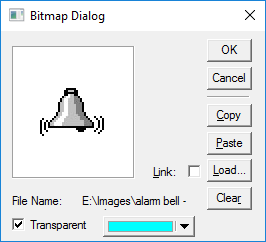
- If you want to copy the image to the clipboard and paste it to the screen, use the Copy and Paste buttons. They are only available if an image is loaded.
- If you want to select a different image, click Clear to clear the loaded image from the Bitmap Dialog dialog box.
- If you want part of the loaded image to be transparent, click to check Transparent, then use the relevant drop-down menu to select which color you want to be transparent. The transparency mask has 0% tolerance, so only pixels that exactly match the selected color will be transparent.
- If you want to link the image rather than embed it, click to check Link.
Note: A linked image is accessed from the file system each time the screen is opened. To link, all users of the screen must have read access to the image's storage location. If the source is unavailable, an  is shown in its place on the screen. Linking can reduce the size of the CygNet Studio file. The amount of reduction depends upon the number of images on TheView and the size of the images. With just a few images the difference might be slight, so you might want to do a comparison before selecting one method over the other. Embedding the image is the recommended method for most screens. When the image is embedded, it is saved with the screen. Embedding the image in the TheView makes the file self-contained.
- If you are finished configuring this image, click OK.


